
KeyTiler is a macOS window manager that moves the active window into a screen area you choose. It is designed for large displays, multi-monitor setups, and workflows that keep many windows visible at once.
KeyTiler does not rearrange every window automatically. You start with the window you are using, then choose where it should go. You can use the full Layout Panel, work from Quick Palette near the pointer, or run a common action with a global shortcut.
Quick start
When KeyTiler is useful
Dragging windows by hand gets repetitive when your editor, terminal, browser, and reference material all need to stay visible. A high-resolution display has room for more than basic halves and quarters. You may also want Thirds, Sixths, or Four Strips.
KeyTiler suits Mac users who want to place each window themselves without learning a long list of shortcuts first. Start with a visual interface, then use direct shortcuts for the actions that become familiar. If you want every window tiled automatically or dynamically, KeyTiler is not that kind of tool.
Requirements
- macOS 15 or later.
- KeyTiler is a menu bar app distributed independently as a DMG.
- KeyTiler needs a macOS permission to read the window information required for a layout and to move or resize windows from other apps.
- KeyTiler is currently in Preview. Preview releases expire; see the FAQ for details.
Install KeyTiler and grant the required permission
- Download the current KeyTiler Preview.
- Open the DMG and drag KeyTiler.app into Applications.
- Launch KeyTiler from Applications. It will remain available in the menu bar.
- Follow the prompt to open the permission settings. On macOS 27 and later, you can also go to System Settings > Privacy & Security > Device Control and Data Access. Earlier macOS versions use System Settings > Privacy & Security > Accessibility.
- Find KeyTiler.app and turn it on. Return to KeyTiler when permission is granted. You do not need to restart the app.
Arrange your first window
This guide uses standard macOS symbols: ⌃ for Control, ⌥ for Option, and ⌘ for Command.
- Click the window you want to arrange so that it becomes the active window.
- Press ⌃ + ⌥ + X to open Layout Panel.
- With more than one display connected, click the target display, or press its number key.
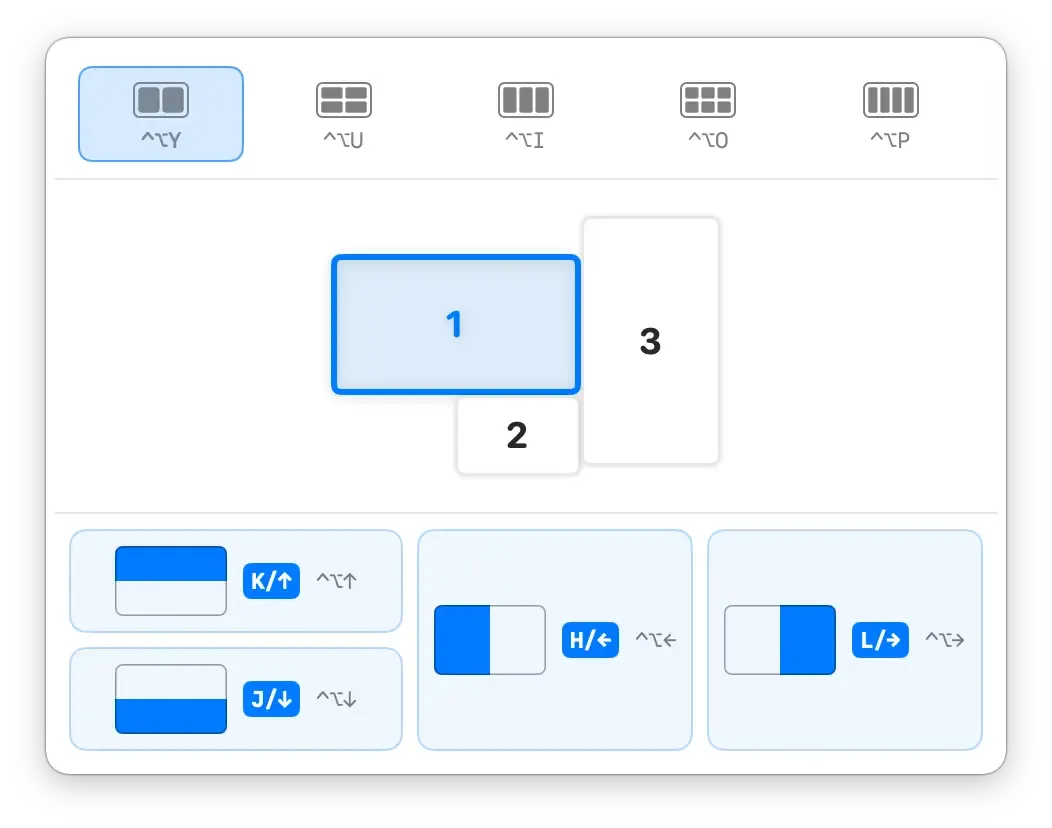
- Click a half or quarter zone, or press the hotkey shown inside it. KeyTiler resizes the window you activated in step 1.
Press ⌃ + ⌥ + Z to open Quick Palette when you want to choose a layout near the pointer with the mouse alone.
Three ways to arrange a window
KeyTiler has three complementary controls. Layout Panel works with the mouse, keyboard, or both. Quick Palette is a mouse interface that opens near the pointer. Direct shortcuts skip the selection interface and run familiar actions immediately.
| Method | Control | Available layouts | Multiple displays |
|---|---|---|---|
| Layout Panel | Mouse or keyboard, opened with ⌃ + ⌥ + X | Five layout families, combined zones, and in-panel hotkeys | Lets you choose a target display |
| Quick Palette | Mouse, opened with ⌃ + ⌥ + Z | Halves, Quarters, Thirds, Sixths, and Four Strips | Uses the active window’s current display |
| Direct shortcuts | Keyboard, with a separate shortcut for each action | Halves, Quarters, Maximize, Center Window, and display movement | Moves a window to the next or previous display |
All three methods act on the window that was active when you triggered them. They do not rearrange other windows in bulk. Highlights in Layout Panel and Quick Palette are previews. The window changes only after you click a zone or press its hotkey.
You can change or disable any global shortcut in Preferences > Shortcuts.
Layout Panel
Move from mouse control to keyboard control at your own pace
Layout Panel displays each zone together with its hotkey. You can begin by opening the general panel and clicking a mode, display, and zone. As those choices become familiar, open a layout mode directly or press the hotkey shown inside a zone.
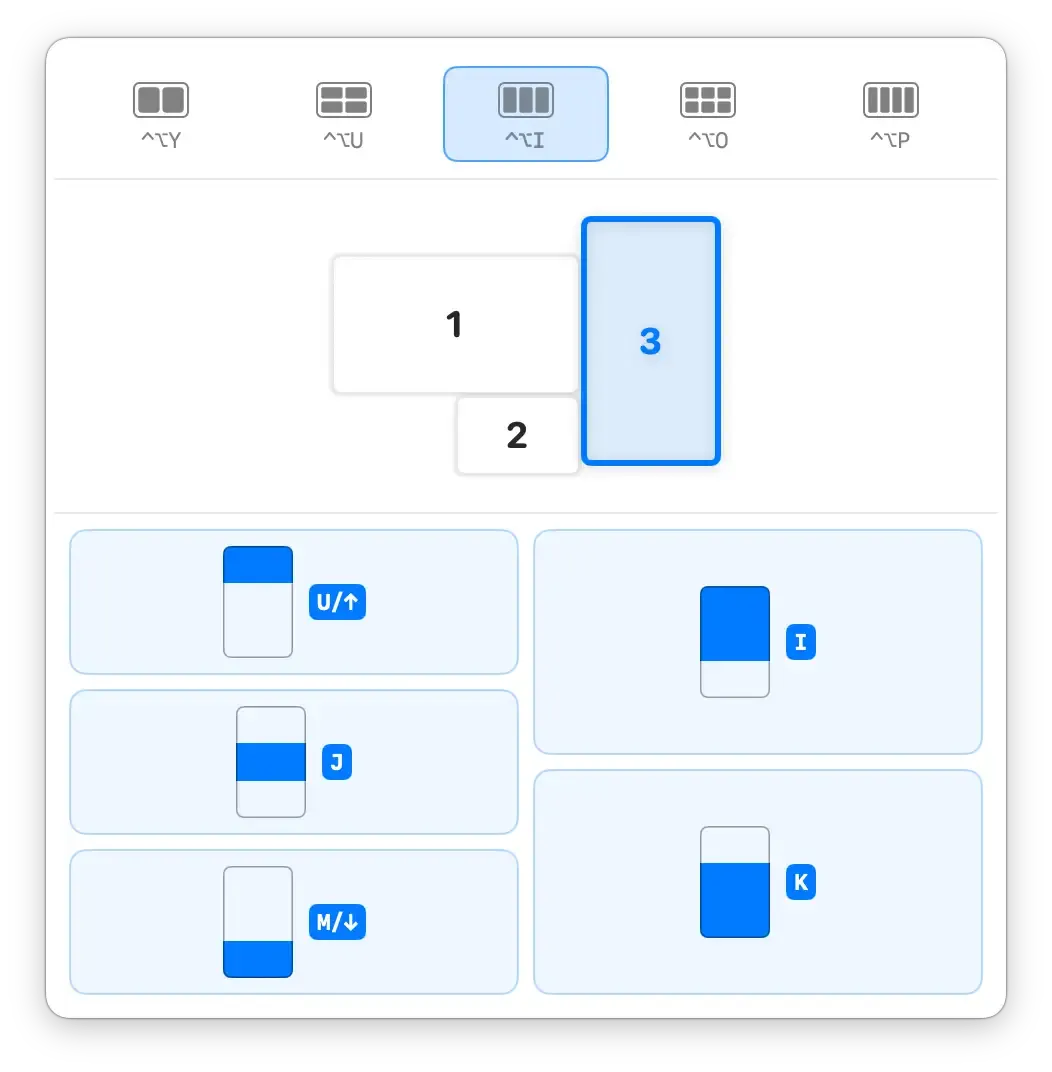
Individual zones in Thirds, Sixths, and Four Strips do not have direct global shortcuts. You can still run them quickly with the letter or arrow keys shown in Layout Panel. There is no need to memorize another set of keys before you begin; the panel keeps the useful ones visible while you work.
Let the general panel predict a layout mode
When you open Layout Panel with ⌃ + ⌥ + X, KeyTiler uses your layout history to predict which mode you are most likely to want and selects it for you. You can switch to any other mode at any time.
If you already know which layout you want, open that mode directly:
- ⌃ + ⌥ + Y: Halves
- ⌃ + ⌥ + U: Quarters
- ⌃ + ⌥ + I: Thirds
- ⌃ + ⌥ + O: Sixths
- ⌃ + ⌥ + P: Four Strips
Use Layout Panel
- Activate the window you want to arrange.
- Press ⌃ + ⌥ + X to open the general panel, or use one of the mode shortcuts above.
- With more than one display connected, click a target display, press its number key, or press Space to switch displays.
- Click a zone, or press the letter or arrow key shown inside it, to apply the layout.
Some keyboard controls are not visible in the screenshot:
- Tab or Shift + Tab: move forward or backward through the layout modes.
- 1 through 9: select the display with that number.
- Space: switch to the next display.
- Esc: close the panel without changing the window.
Choose another display and a zone in Layout Panel to move and arrange the window in one action. KeyTiler still handles one window at a time and leaves other windows where they are.
Five layout families
| Layout family | Available zones | Example use |
|---|---|---|
| Halves | Left, right, top, and bottom halves | Place two main windows side by side or one above the other |
| Quarters | Four corner zones | Place four windows in the corners of a display |
| Thirds | Three individual zones and two 2/3 combinations | Give a main window more room while keeping a supporting window visible |
| Sixths | Six individual zones and four adjacent two-zone combinations | Arrange more windows on a high-resolution display |
| Four Strips | Four individual zones and one centered half | Line up several narrow windows horizontally or vertically |
Thirds, Sixths, and Four Strips adapt to the target display’s orientation. The portrait Thirds layout below has top, middle, and bottom zones, plus upper and lower 2/3 combinations.
Quick Palette
What Quick Palette does
Quick Palette is a mouse-only layout selector. Press its global shortcut and it opens near the pointer. Position, layout diagrams, and highlights show where the active window will go. Common actions are visible immediately, while advanced combinations expand only when you need them.
Quick Palette keeps the window that was active when you opened it as its target. A later focus change will not switch the target to another window.
Use Quick Palette
- Activate the window you want to arrange.
- Press ⌃ + ⌥ + Z to open Quick Palette.
- Move the pointer after the palette appears. A pointer that was already resting over a zone before the palette opened does not count as a selection.
- Point to a zone and check the highlighted preview.
- Click to apply the layout. Hovering changes only the preview; it does not move the real window.
Press Esc, press ⌃ + ⌥ + Z again, or click outside Quick Palette to cancel.
Halves and quarters in the center
The center ring contains eight common positions: left, right, top, and bottom halves, plus the four screen quarters. Each zone points in the same direction as the window’s final position, so you do not need to read a label before choosing it.
Expand advanced layouts
The diagrams around Quick Palette represent Thirds, Four Strips, and Sixths. Rest the pointer briefly over one of their base zones to expand the combined zones for that layout family. You can still click the base zone, or move into the expanded diagram and choose a combination.
Thirds has three individual zones and two 2/3 combinations. The combinations overlap in the center, and that overlap does not trigger an action.
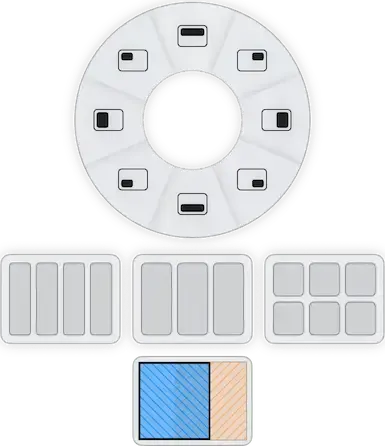
Four Strips has four individual zones. When expanded, the two middle zones can also be combined into a centered half.
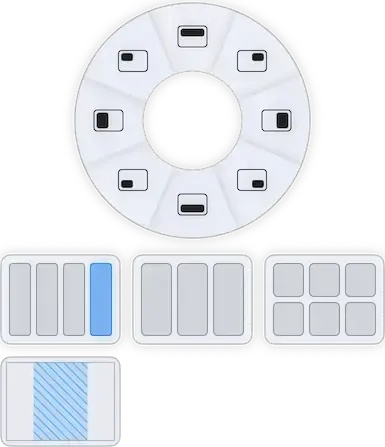
Sixths has six individual zones and four adjacent two-zone combinations, with two combinations in each row. Overlapping parts of the combination diagrams do not trigger an action.
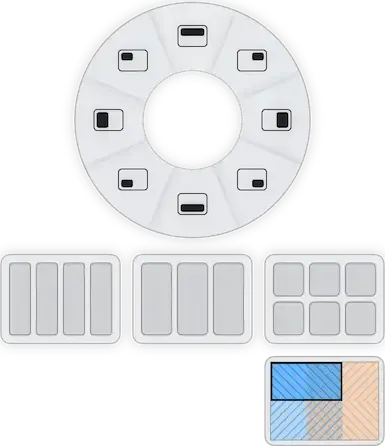
These layouts switch to the corresponding vertical arrangement on a portrait display.
Quick Palette limits
Quick Palette works on the display that contains the active window and does not provide a target display picker. Apart from its open and close shortcut and Esc to cancel, it does not support keyboard layout selection or VoiceOver. Use Layout Panel when you need keyboard control or want to move a window to another display.
Near a screen edge, Quick Palette adjusts the position and expansion direction of its advanced combinations. Some content may still be clipped if there is not enough room. Layout Panel is the better option in that case.
Direct shortcuts
Direct shortcuts apply an action to the active window without opening Layout Panel or Quick Palette. They are useful for frequent actions you already know. Choose individual Thirds, Sixths, and Four Strips zones through Layout Panel or Quick Palette instead.
These are all default direct shortcuts in the current version:
| Category | Action | Default shortcut |
|---|---|---|
| Halves | Left half | ⌃ + ⌥ + ← |
| Halves | Right half | ⌃ + ⌥ + → |
| Halves | Top half | ⌃ + ⌥ + ↑ |
| Halves | Bottom half | ⌃ + ⌥ + ↓ |
| Quarters | Top-left quarter | ⌃ + ⌥ + H |
| Quarters | Top-right quarter | ⌃ + ⌥ + J |
| Quarters | Bottom-left quarter | ⌃ + ⌥ + N |
| Quarters | Bottom-right quarter | ⌃ + ⌥ + M |
| General | Maximize | ⌃ + ⌥ + Return |
| General | Center Window | ⌃ + ⌥ + C |
| General | Next Display | ⌃ + ⌥ + ⌘ + → |
| General | Previous Display | ⌃ + ⌥ + ⌘ + ← |
Center Window keeps the window’s current size and moves it to the center of the current display. Next Display and Previous Display move the window to the corresponding display and center it there.
Customize shortcuts
Open Preferences > Shortcuts to change an individual shortcut, disable an action you do not need, or restore every default. The settings are grouped by purpose: layout pickers, Layout Panel modes, Halves, Quarters, and general operations. Layout Panel and Quick Palette have separate, customizable entry shortcuts.
If a new binding conflicts with a macOS system shortcut, KeyTiler reports the conflict and does not change the system setting.
If a window does not move
Check these items in order:
- Make sure the window you want to arrange is active.
- On macOS 27 and later, open System Settings > Privacy & Security > Device Control and Data Access. Earlier macOS versions use System Settings > Privacy & Security > Accessibility. Confirm that KeyTiler is enabled. Return to KeyTiler and try again after granting permission. You do not need to restart the app.
- Confirm that your Mac runs a macOS version supported by the current Preview.
- Open Preferences > Shortcuts and check whether the action is disabled or its shortcut conflicts with another binding.
- Try a standard window from another app. Some windows do not allow other apps to move or resize them.
If Quick Palette does not open, first confirm that an eligible window is active. KeyTiler cancels the Quick Palette session if its target window becomes unavailable or moves to another display, or if the display arrangement changes while you are choosing a layout. This prevents the action from reaching the wrong window.
If the problem continues, send a compatibility report with the result you expected, what happened instead, and your KeyTiler and macOS versions. The form does not accept screenshots, logs, or attachments.
Choose the method that fits the task
Open Layout Panel when you want to combine the mouse and keyboard or choose another display. Use Quick Palette when you want to make a nearby visual choice with the mouse. Once a position becomes familiar, run it with a direct shortcut.
You can switch methods from one task to the next, and you do not need to memorize every key at once. Arrange the windows you use most, then decide which actions are worth learning as shortcuts.
Download KeyTiler Preview, or read the FAQ for details about Preview releases, updates, privacy, and language support.