
VISUAL FIRST. FAST WHEN READY.
A macOS window manager you can use before memorizing shortcuts
When halves and quarters aren't enough, open Layout Panel for thirds, sixths, four strips, and combinations — by mouse or keyboard, across displays. For lighter picks, Quick Palette opens at your pointer. For common actions, press a direct shortcut.
Layout Panel previews
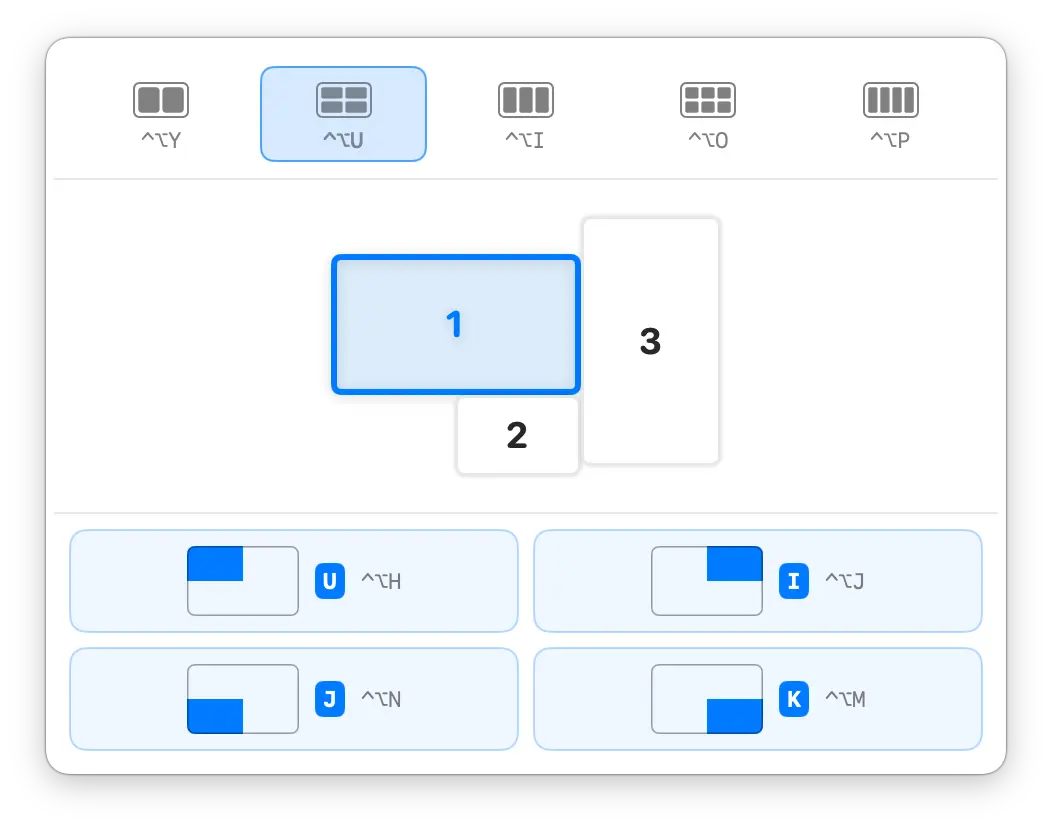
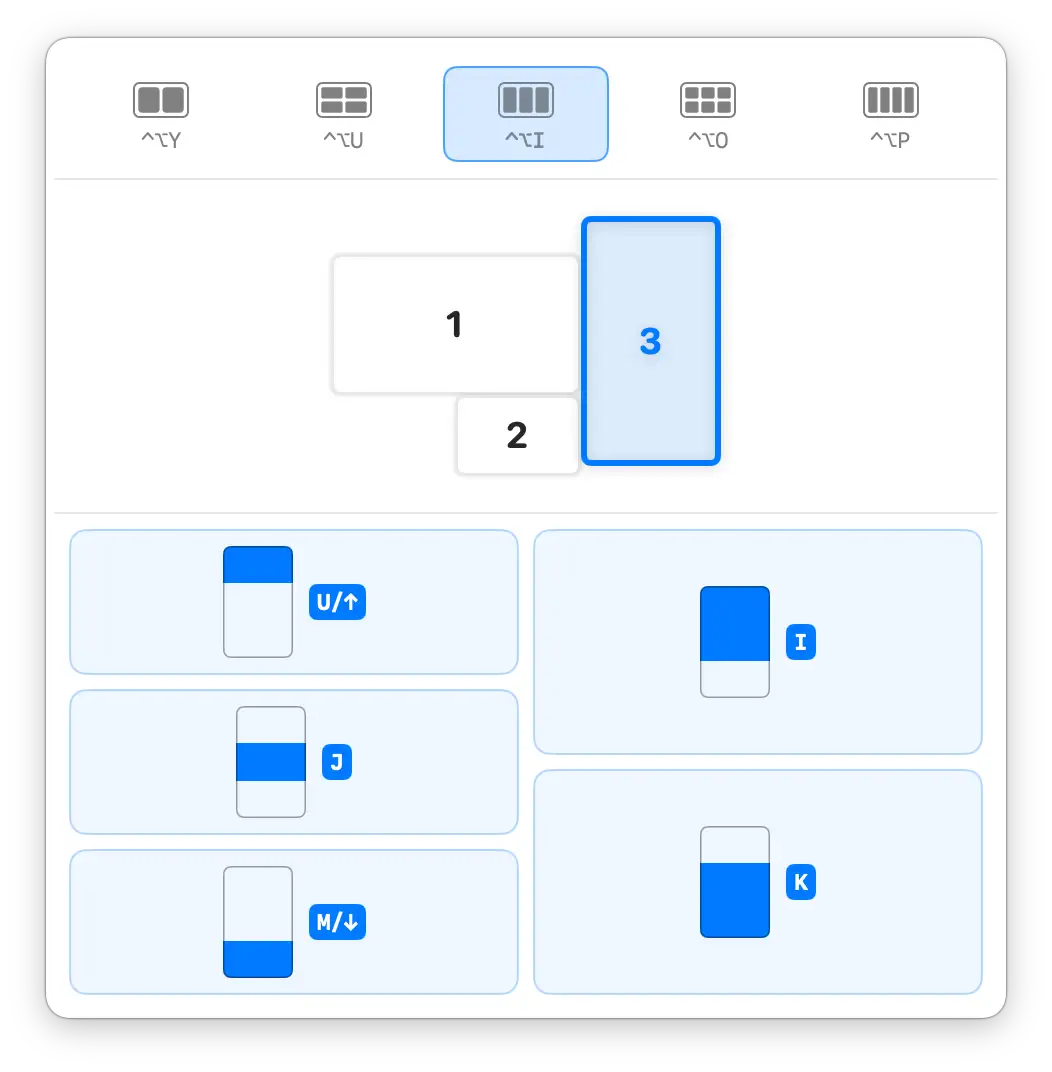
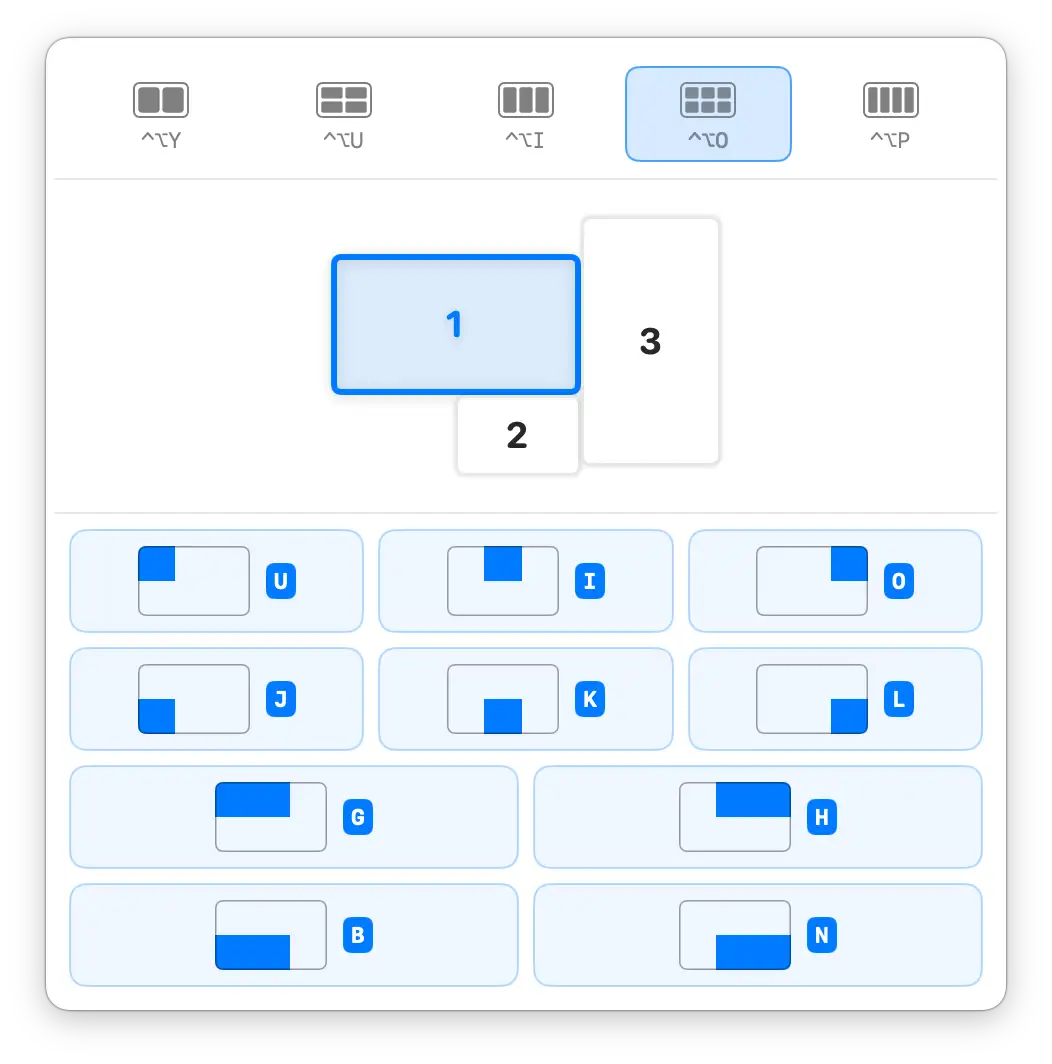
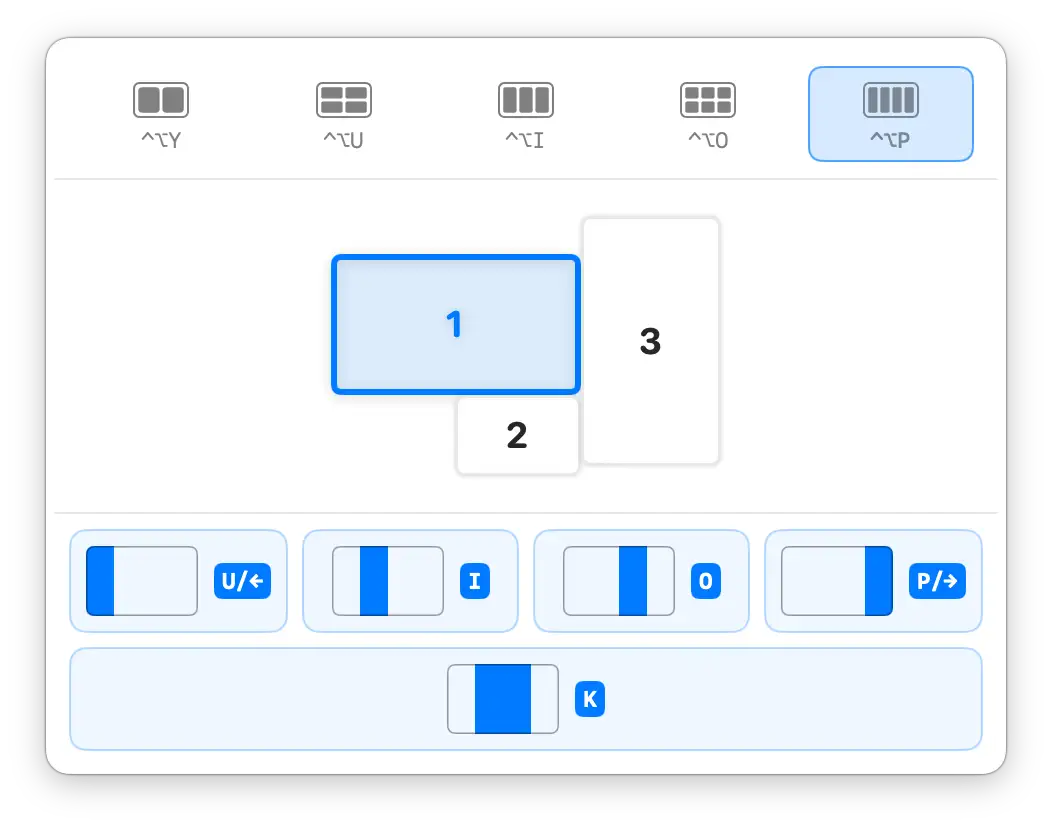
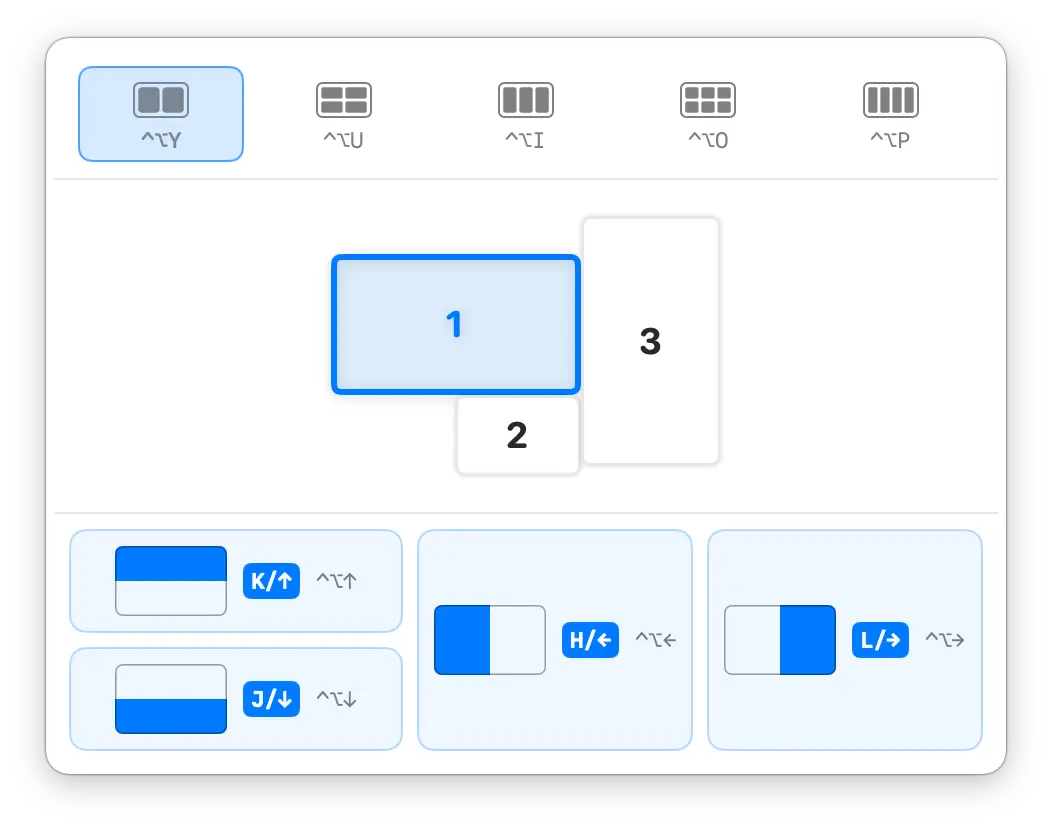
LAYOUT PANEL
Mouse, keyboard, multiple displays — all in Layout Panel
From halves and quarters to thirds, sixths, four strips, and combinations, every layout, target display, and hotkey stays visible in the panel. Click or press the shown hotkeys; switch the target display and the layout applies there. The active window moves only after you choose a zone.
01
Beyond halves and quarters
Five layout families and a hotkey for every zone stay visible in the panel. Pick with the mouse and learn the keys as you go, or jump straight to a family with its shortcut.
⌃⌥YUIOP(Open a layout family directly)
02
Work across displays
The panel mirrors your real display arrangement. Switch the target display, and the layout applies to the screen you chose.
⌃⌥X(default)
QUICK PALETTE
Your next layout appears right at your pointer
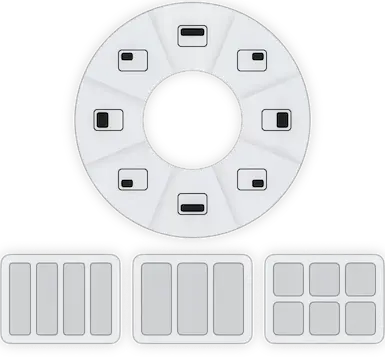
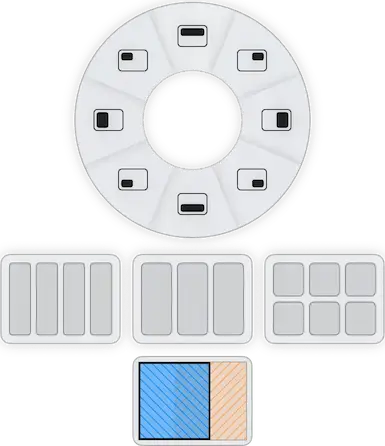
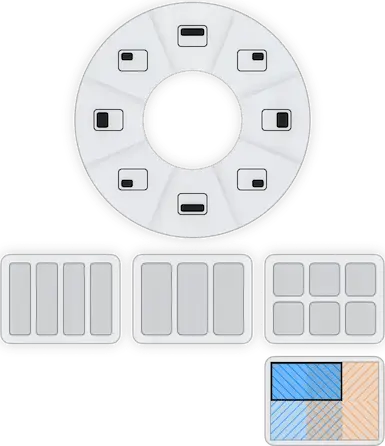
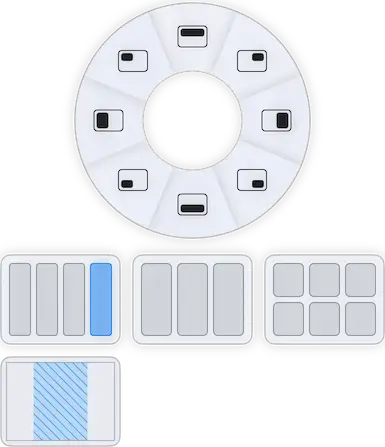
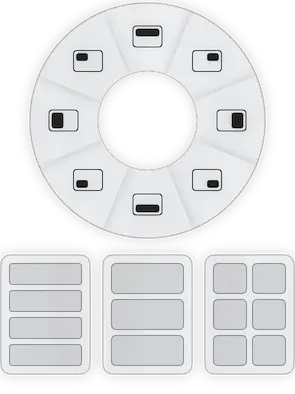
Press ⌃+⌥+Z and Quick Palette unfolds beside your pointer: halves and quarters in the center, advanced families like thirds and sixths expanding around the edge as you need them. Move onto a zone to preview it live, then click to apply — no keyboard, no memorizing.
⌃⌥Z(default)
Quick Palette views
ONE SMOOTH LEARNING CURVE
Start visual. Learn as you go. Skip the picker when ready.
Use the control that fits the task instead of committing to one workflow. Quick Palette keeps mouse choices light; Layout Panel keeps every option and hotkey visible; direct shortcuts make familiar actions immediate.
- Pick near the pointer with Quick Palette
- Browse and learn in Layout Panel
- Run familiar actions with direct shortcuts
DIRECT GLOBAL SHORTCUTS
When an action feels familiar, skip the picker
Use a direct shortcut for Halves, Quarters, Maximize, Center Window, and display movement. Change any default in Preferences > Shortcuts.
Halves
- Left half⌃⌥←
- Right half⌃⌥→
- Top half⌃⌥↑
- Bottom half⌃⌥↓
Quarters
- Top left⌃⌥H
- Top right⌃⌥J
- Bottom left⌃⌥N
- Bottom right⌃⌥M
Other
- Maximize⌃⌥Return
- Center Window⌃⌥C
- Next Display⌃⌥⌘→
- Previous Display⌃⌥⌘←
LARGE-DISPLAY WORKFLOWS
Keep more of your work visible on a large Mac display
Arrange your editor, terminal, browser, documents, and parallel agent sessions without stopping at halves and quarters. KeyTiler adds Thirds, Sixths, Four Strips, and combined zones while leaving every placement under your control.
The current Preview supports macOS 15 and later and requires this permission to control windows. macOS 27 and later label it Device Control and Data Access; earlier versions call it Accessibility. Preview releases expire; final pricing has not been announced.
Window tiling on large Mac displays: more layouts, fewer shortcuts to rememberDOWNLOAD
Device Control and Data Access permission
macOS 27 and later label this permission Device Control and Data Access; earlier versions call it Accessibility. KeyTiler needs it to move other apps' windows.
FAQ 2.212 languages or language variants
English, Simplified Chinese, Traditional Chinese, Japanese, Korean, French, Russian, Spanish, German, Italian, Portuguese, and Arabic
FAQ 1.3Preview
KeyTiler is free while Preview validates the product before 1.0. Preview builds expire, and final pricing has not been announced.
FAQ 6.1